

◎Overview #
You can install PolyMate by drag and drop. It completes in three steps.
▼Step 1: Extract the ZIP #
Extract the downloaded ZIP to any folder.
▼Step 2: Drop the installer #
From the extracted PolyMate_〇〇(Tool Name)_Setup folder, drag and drop PolyMate_Installer.py into Maya’s viewport.
▼Step 3: Add a Shelf button #
Select the target Shelf and add the button.
You may create a new Shelf first and register the button there.
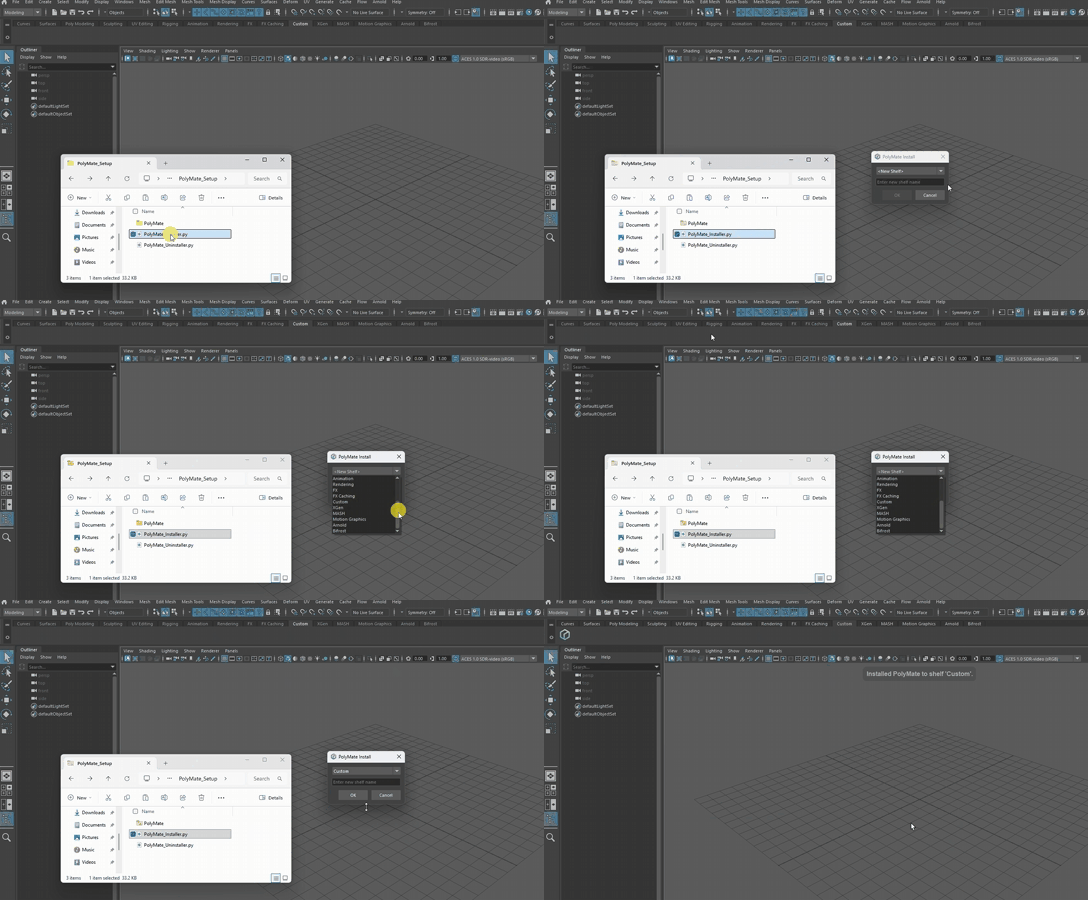
Installation is complete.
Clicking the button will open the activation dialog.
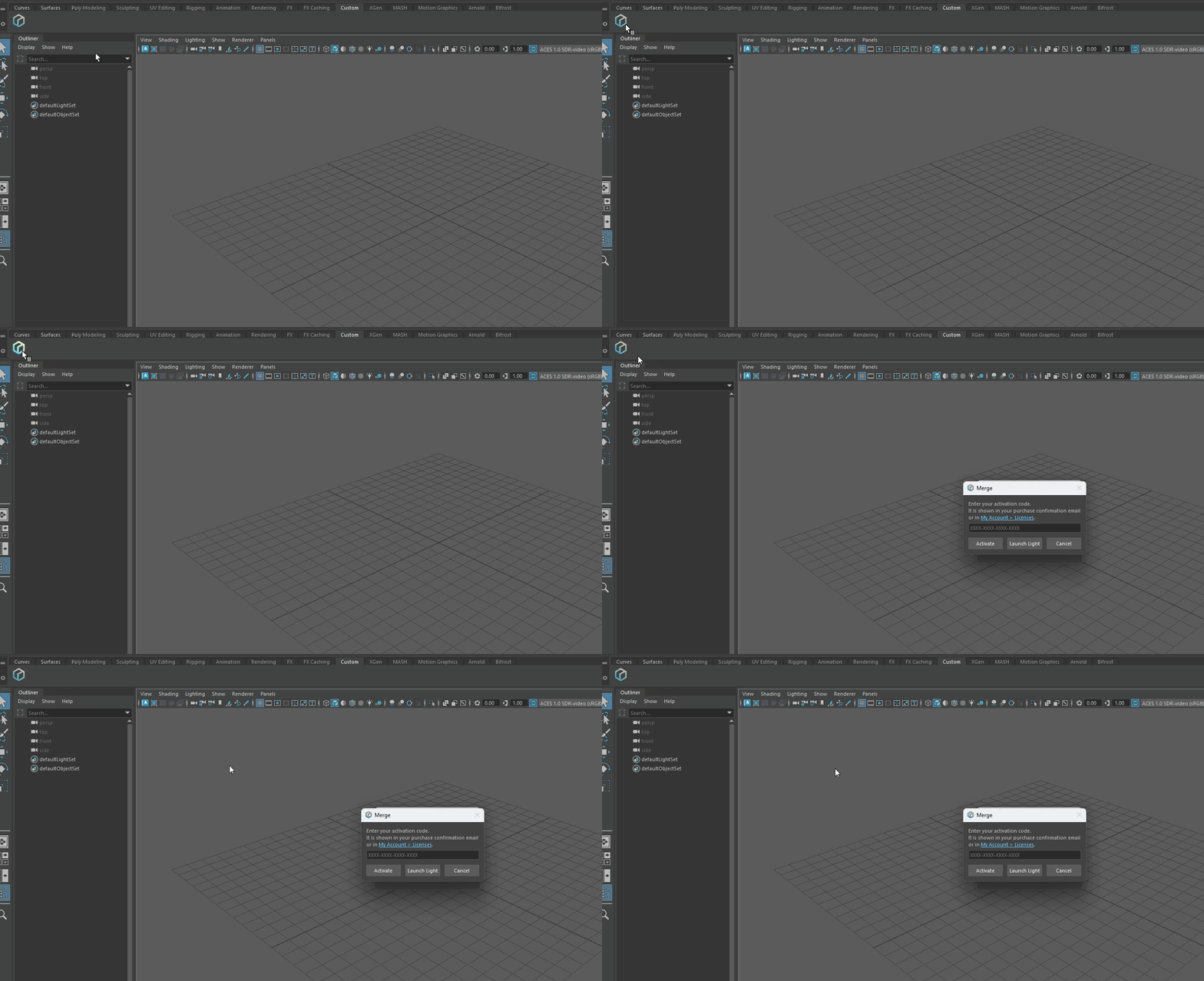
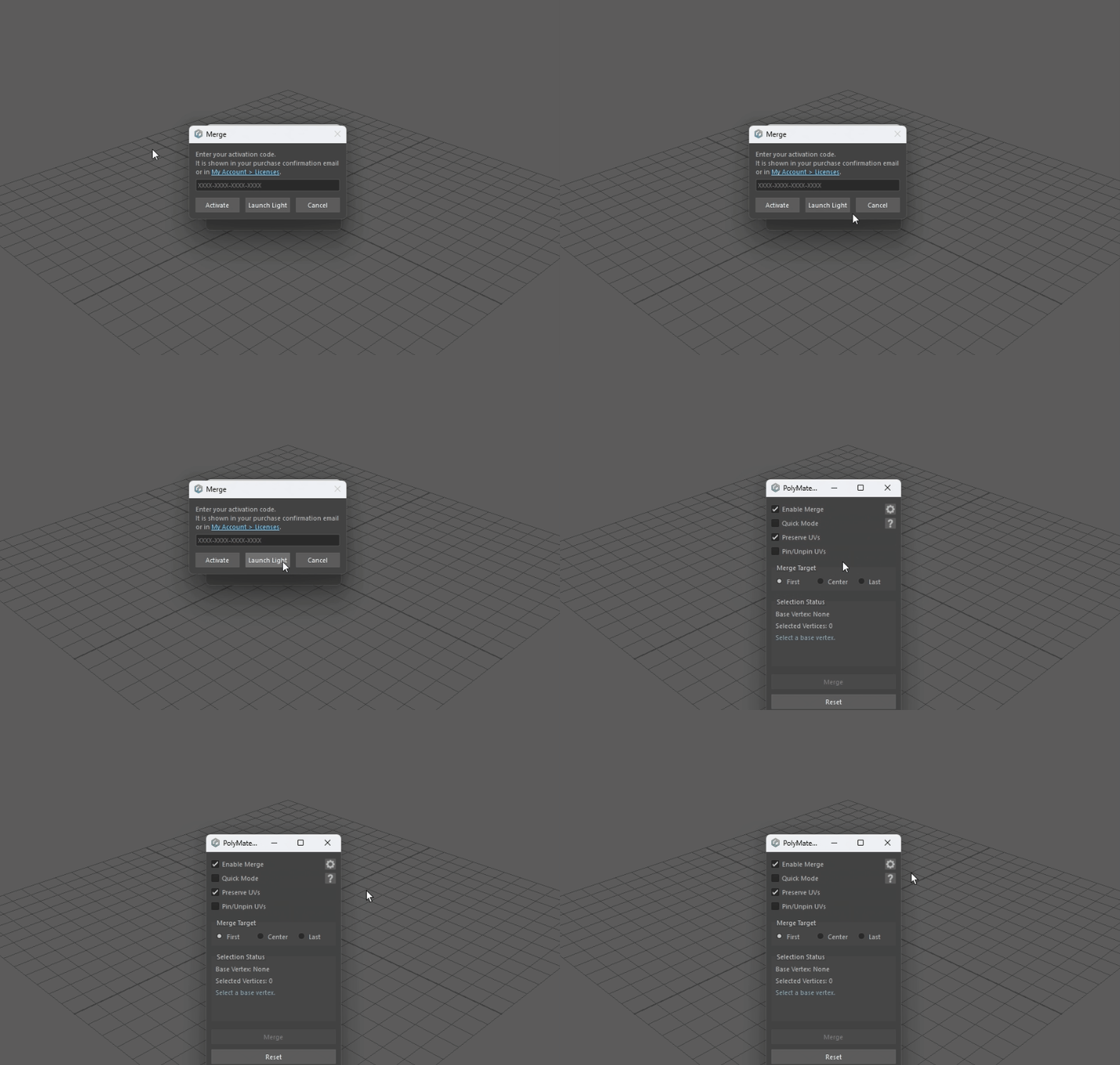
For the free “Light Edition,” please simply click the “Launch Light” button.
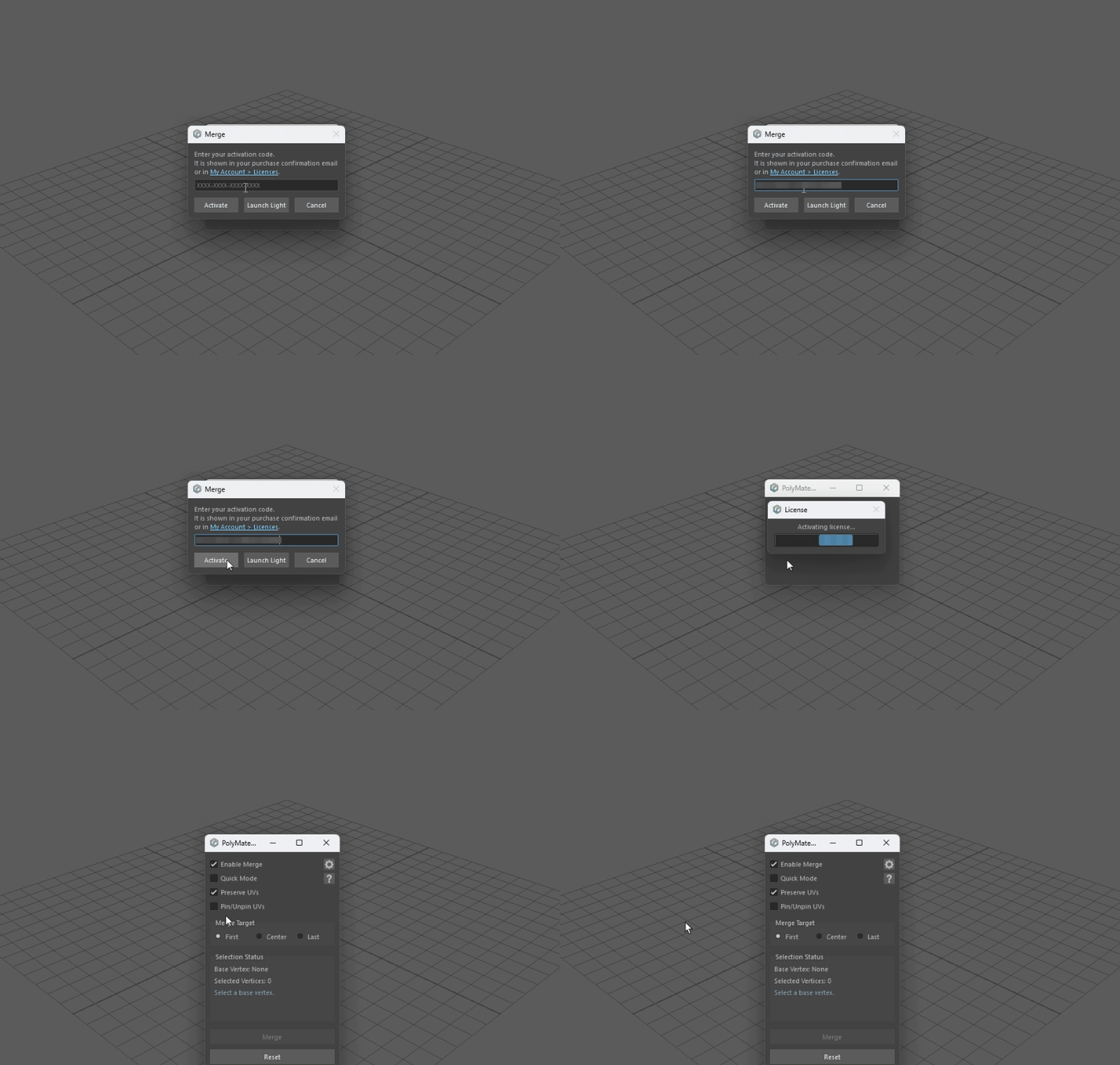
For the paid “Full Edition,” please enter your activation code and verify.
Your activation key can be found on the license page of the purchase site or in your email.
After the first launch, adjust settings such as language as needed.
◎Package folder and installation paths (Windows) #
For manual installation, refer to the following.
▼Items to place #
- PolyMate (entire folder)
▼Install location (manual placement) #
Shared use (across all Maya versions) #
C:\Users\<UserName>\Documents\maya\scripts\PolyMate<UserName>= Windows account name (create the folder if missing).- Note: This is also the installer’s default destination.
Use for a specific version #
Example:
...\maya\2026\prefs\scripts\PolyMate\
...\maya\2026\custom\tools\scripts\PolyMate- Under
...\Documents\maya\<version>\, create ascriptsfolder at any location and placePolyMatedirectly under it.
▼Reference folder structure (under PolyMate) #
PolyMate                (package folder)
├─ 2022                 (folder for Maya 2022)
├─ 2023                 (folder for Maya 2023)
├─ 2024                 (folder for Maya 2024)
├─ 2025                 (folder for Maya 2025)
├─ 2026                 (folder for Maya 2026)
├─ i18n
├─ icons
└─ boot.pyNote: If limiting to a specific version, only that year’s folder is required (e.g., for Maya 2026, only 2026).
▼Launch (Shelf button / script) #
# Launch command (Python)
import PolyMate.boot; PolyMate.boot.run()
# Icon (optional)
PolyMate\icons\polymate.png